
Adding items
To set up items that you will need to add, open Stock Items (in the Jobs menu and also in the Stock menu).
Two options when adding items:
1. If you need to place orders for items, simply assign a supplier in the Stock item (Additional details). Then the order this item button will appear when you add the item to an event.

Alert for items not ordered:
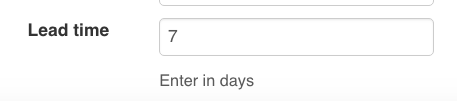
At the same time you can set up an automatic check to verify that items have been ordered for the event. The length of time to receive a reminder is set using the lead time for the item, example: if you set the lead time to 7 days, for all events where this item has been added or specified and an order has not already been placed, you will receive an alert.
The alert appears at the top of the resources screen. You can simply click view the details to see all items that need to be ordered.
2. If the item is already "in house" and you have a set quantity available to be used, set the stock item as an Asset (instead of Stock). Then add the maximum quantity available into the Component details field.
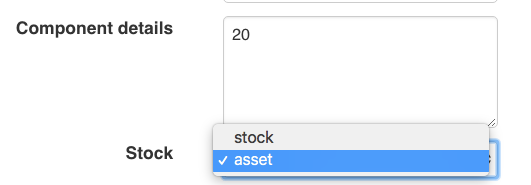
This will alert you if you enter a quantity that exceeds the quantity available. Note: There is a 30 minute buffer between bookings to allow you time to relocate assets.
Ordering items added in Resources
The order button will appear automatically if you have allocated a supplier for the line item. To place an order, click the order button. Then click the link button (beside the order status) to open the draft purchase order. Click the Draft Purchase Order.
You might be asked to select the warehouse (delivery address). Click to set.
To approve the Purchase Order click the Approve button. This will update the PO status to Processed.
Now you can send the PO to the supplier. Click the SendEmail button (or alternatively click the View button to download and print / post). This will update the PO status to sent.
The Supplier will receive an email with the PO attached as a PDF. Your supplier can click the Accept this order button (on the right hand side of the PDF), provided they are connected to the internet, this will update the PO status to Accepted.

Comments