
Using Filters
Choose the filter you want to see (example: Week)
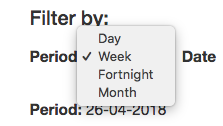
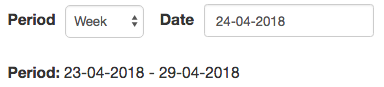
then select any date (during the week that you want to display)

then click on Refine Search

and the week selected will display.
The period covered by the filter will also display.
Other filters:
Choose a specific user (or all, ----) OR
Choose a specific contact (start tying the name of the contact and select) OR
Choose a project
then click on Refine Search
Amend the time
If the time/s need to be amended, an admin user or a person who has received a link to approve, can click to amend the work time. After approval the times cannot be edited.
Download the timesheet
The download button will download the timesheet displayed as a spreadsheet (CSV format). Hint: You can adjust the filters and download multiple spreadsheets, if required.
Send for Approval
If you need to send the timesheet/s for approval, select a contact OR a project to filter and this will show the Mail for approval button.
When you click the Mail for approval button this will show the email address that it will be sent to. As an option you can manually (delete the email address first) enter an alternative email address.
The person will receive an email, they just need to click on the link to view the timesheet.
Just the screen that you see (using the same filters) will be available to view. They can simply click on Approve OR if any of the times require adjustment they can click to amend the times before approving.
The link to the timesheets will expire after it is approved or after 36 hours as an additional security measure. If they have not viewed the timesheets before the link has expired it will be necessary to resend the timesheet for approval again.
On approval the timesheet lines will be shaded green (to identify which times have been approved).
Comments