
Access the settings for job emails
(click on your name at the top right, select Admin system then Job emails)
Update job emails settings
(click on your name at the top right and select Admin system, then Job Emails)
1.1 Check that your company name / address / phone / email address and website are correct
1.2 Upload your logo (click on choose file)
1.3 Scroll to the bottom of the page and click on Update Job Emails
1.4 (optional) Add a message into the emails that are sent
1.5 (optional) Set the option to switch automated emails on / off at the base of the page
Types of job emails
1. Booking Confirmation
These emails are send to a contact to confirm the booking details. This is sent with your logo / name and contact details. When you click to confirm the booking you have the option to send = OK or do not send = cancel
You can insert you own messages into the email with the Additional Booking confirmation message (in job emails) - click update confirmation email
example Booking confirmation:

2. Booking amendment
This is similar to the booking confirmation and sent after you edit a job booking. When you click to confirm the update you have the option to send = OK or do not send = cancel
You can insert you own messages into the email with the Additional Booking amendments message (in job emails) - click update amendments email
example Booking amendment:

3. Booking cancellation
This is similar to the booking confirmation and sent after you set a job booking status as cancelled. When you click to confirm the cancellation you have the option to send = OK or do not send = cancel
You can insert you own messages into the email with the Additional Booking cancellation message (in job emails) - click update cancellation email
example Booking cancellation:

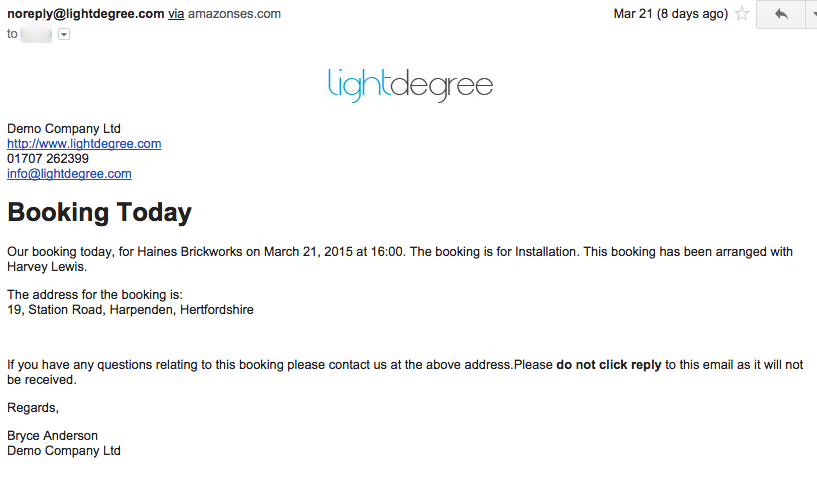
4. Booking today
This is an automated message sent to your contact to remind them of the booking for today. It is send on the morning of the job. There is an option to switch the booking today reminder email as on / off at the base of the page. Click update job emails to save
You can insert you own messages into the email with the Additional Booking today message (in job emails) - click update booking today email
example Booking today:
5. Booking reminders
(click on jobs in the top menu and then click on reminders in the secondary menu)
These are used to remind you and your customer when a service is next due / an annual gas certificate needs to be renewed / a warranty expires / a subscription is due for renewal or just about anything else that needs a reminder
These sent out automatically 30 days before date you have set for a reminder. Reminders are added when you are adding a job (select from the reminder options of 2 - 24 months) and can also be added manually with Add a reminder
The reminder status is set to open by default
After a reminder email is sent out the reminder line is shaded in green. During this time (after it changes to green) when the customer books a job you can set the status to Booked, or if they decide not to proceed set the status to Dismiss
After the due date is past the reminder line is shaded in red. Then 30 days after the due date the reminder will be removed from the list
You can insert you own messages into the email with the Additional Booking reminders message (in job emails) - click update reminder email
example reminder:

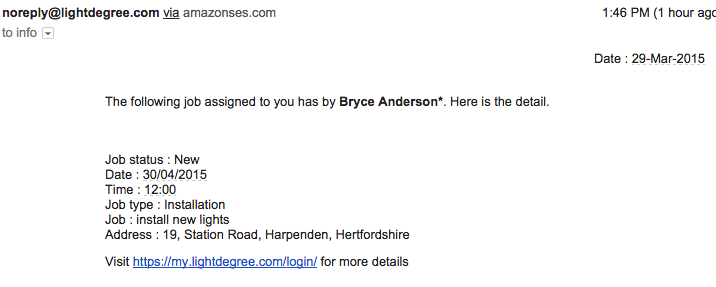
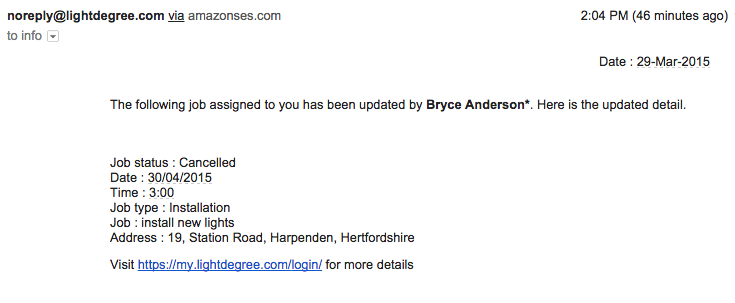
6. Notification emails
These are sent to your team on Booking confirmation / amendment / cancellation
example booking notification:
example amendment / cancellation:
Comments