

It is simple to add a contact, just select Add a contact. Enter the information and click next. (See example screens below)
See also uploading bulk data
See also How to enter data really fast into your CRM


If you select as an individual the address will be added as a personal address.
If you select with company details the address you enter here will automatically be added as a company address.

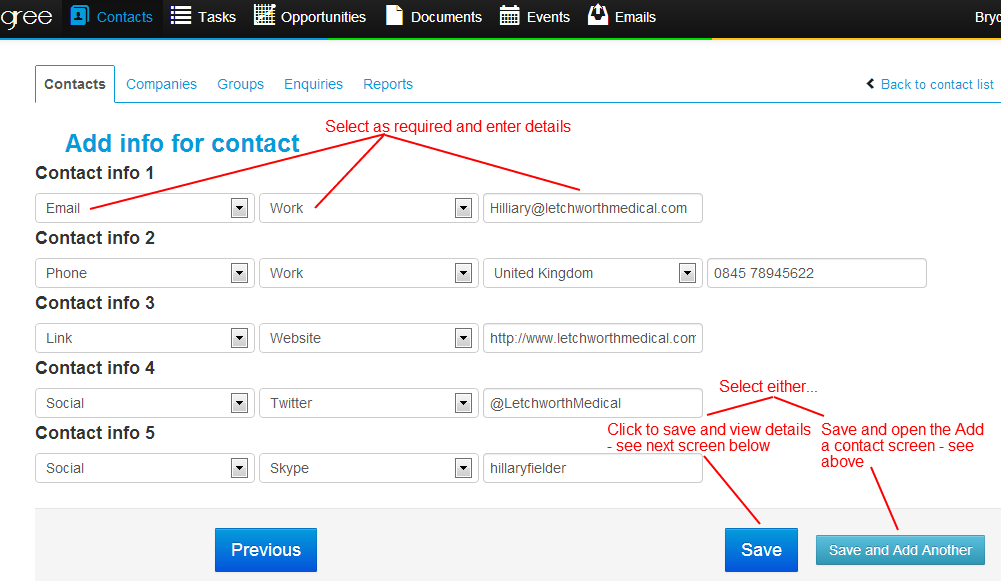

Note: When adding a website address in contact details add the complete URL web address including http:// or https:// in front of the url (Example: http://www.lightdegree.com).
Comments