

Creating a Call List
- This is a really practical way to set up a group of contacts as a call list
- Makes assigning a call list easy
- Makes monitoring progress simple
- Calling is a breeze, when using a mobile phone just click on the number to call!
- Schedule call backs so no-one is missed
- Record responses using log entry
A call list is created by adding a task.
Add a task
- From the tasks tab select Add a task. When adding a task you can either select the name of a contact or you can select a group (click on the words choose group to the right of the contacts field) then select the name of the group from the drop down.
- If you choose a group when adding a task you have the option to set the task to display a call list by clicking the call list box.
- When adding a task you can assign the task to a user (if you assign a task to another user we'll send them an email so it's on thier radar).
- Tasks to complete (Tasks for you to complete)
- Tasks I've created (This includes tasks that you have created for other users)
- All tasks
The call list will appear as a task.
In the tasks list in the actions column the number of calls will be displayed example 2 of 30.
To display the call list click on the task status and select view call list.
Using the call list
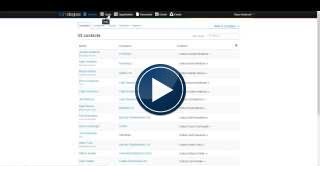
The call list displays 3 columns. To call someone click contact in the contact column. This will display the contact details. On a mobile you can just click on the number to call. When finished close the call an you can enter a log entry to record call details.
Then close the modal pop up screen.
In the actions column click on the words status (this is set as incomplete by default) and either set the call as completed or alternatively where the caller has requested a call back you can select arrange a call back. To set the date and time click on the calendar icon to set the date and edit the time if required.


Comments