
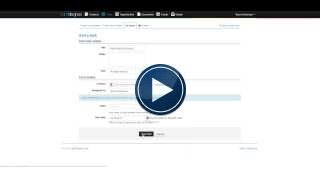
Set up a task from the contact details page
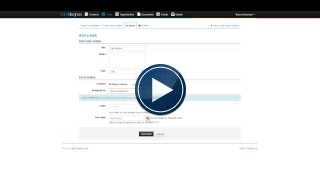
Add a task (or reminder)
- From the contact view you can select an action Add a task (this will auto assign the contact)
- From the tasks tab select Add a task.
When adding a task you can either select the name of a contact (begin typing the contacts name and select from the list displayed) or
you can select a group (click on the words choose group to the right of the contacts field) then select the name of the group from the drop down. - If you choose a group when adding a task you have the option to set the task to display a call list by clicking the call list box.
- When adding a task you can assign the task to a user (if you assign a task to another user we'll send them an email so it's on thier radar).
- If the task is to be a part of case please select the case from the drop down list.
- You can add / edit task types in the Admin section (available to Admin users).
- The date format in add a new task (due date) is 2013-01-31 (this will auto display when using a mobile).
- Tasks to complete (Tasks for you to complete)
- Tasks I've created (This includes tasks that you have created for other users)
- All tasks
- Tasks due today are highlighted in green and overdue tasks are highlighted in red.
- To view the task notes click on the task title and it will expand to display the details / notes.
- To update the status of a task or to edit a task simply click on the action icon and select the new update status or edit.
- When the task status is set to completed the task will no longer display. To view completed tasks check the Show completed tasks check box.
- To display a call list click on the task status and select view call list.
- If you create a task for another user they will receive an email to notify them that they have been assigned a new task. They will also receive an email to notify them if you update the task status or delete the task.
- You will receive an email to notify you about changes to the task status made by other people if you created the task.


Set up a Call List
- This is a really practical way to set up a group of contacts as a call list
- Makes assigning a call list easy
- Makes monitoring progress simple
- Calling is a breeze, when using a mobile phone just click on the number to call!
- Schedule call backs so no-one is missed
- Record responses using log entry


Task type
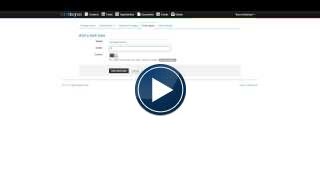
- By adding the types of tasks that you usually perform it saves time and typing... instead you can just click and select
- To add new or to edit task types select admin system (click on your name).


- You can choose to automatically display your tasks in your calendar.
- To view your tasks in your calendar copy the links at the base of the tasks page (this set up is only available on a desktop view - it does not display on a mobile).
-
This is in an iCal format and can sync with most calendars including Google calendar, Apple calendar, Go-Daddy online Group Calendar.


This will display a list of simple how-to guides (click to display further instructions)
To set up your calendar choose which calendar you want to display,
Tasks created by me OR
Tasks assigned to me.
Simply copy the URL beside the one you select. It will look something like this... Example: http://my.lightdegree.com/tasks/ical/....................
Google
To set up in Google calendar select the Other calendars tab and from the drop down select add by URL - paste the URL here. This will then automatically update on your mobile, and you will need to set the new calendar to display.
The Google calendar will automatically sync at intervals to update your calendar.

Samsung
Click on the calendars icon (S Planner) and select the new calendar and click Done
Apple / iPhone
Google calendars other than your default calendar are treated as delegated calendars by Apple iCal. To get them to open in the main screen go to iCal > Preferences > Accounts, select your google account, click the tab for Delegation, then check the boxes next to the calendars you want to display in your main calendar window.
Now in the upper left hand corner of the iCal window, click the Calendars button which brings up the pop-up allowing you to select which calendars are visible. Check the box for the calendars you want to view. You can return to this pop up at any time to change the calendars you're seeing at any given time.
Comments