
Opportunities

Opportunities Reports
Set up Opportunities Stages

Track your sales pipeline
Opportunities are a simple way to keep track of your sales pipeline. Some companies enter all quotes as opportunities. Others record all potential income from customers (even before a quote has been prepared...). It's a great way to make sure all potential income sources are recorded and nothing is ever missed. Percentages are used to calculate the estimated value and potential worth. Contacts can have multiple opportunities.
Set up opportunity stages
The first step is to set up the opportunity stages. Access from the admin section (click on your name - Admin users only) and select Opportunity stages or from add an opportunity select the link change stage types.
You can set a percentage based on the likelihood of success for each stage.
Set the order that you want to display on the drop down (this will appear in add or edit an opportunity)
Select a colour for the stage icon.


Add an opportunity
From the contact view select Add an opportunity from the actions menu (on the right on PC and at the base on a mobile). Alternatively from the opportunities module select add an opportunity.
Give the opportunity a name.
The contact name and company will automatically fill if you started from the contact view. Other wise begin typing a contact name and select from the list.
You can enter further description or detail of your opportunity if required.
Select the opportunity stage. To set up the stages (Admin users only) click on the link change stage types. This will automatically set the percentage (based on likelihood of a successful outcome) if a percentage has been set for this stage. The percentage can also be overwritten if reguired.
Select the anticpated date the opportunity will reach a successful outcome.
Other optional fields
Custom fields (further options) can be added from the admin section (click on your name - Admin users only). Typical custom fields might include an owner field (the name of the person responsible for managing this opportunity) or an opportunity type (this could be product category or even a list of products, although if you have a long list this could prove tedious for users to select each time). If you are using an owner (list of users) field you can set the opportunities list to open filtered to display each users own list of opportunities.
Opportunities list
This displays a list of opportunities (sorted by default by anticipated date). There is a search option to find specific contacts.
Graphs: The graphs display for each opportunity the total value and the current value (total value x the opportunity percentage that you have assigned).
Table: The table displays the opportunity name, what stage it is currently set to, the contact and company names, the amount (total value), the percentage, the value (current value) and the anticipated date. If the anticiapte date is past it will display in red. To edit the opportunity (to change the date or update the stage) simply click on the opportunity name. This also provides a total value based on the opportunities displayed.
The opportunities list can be filtered by custom fields (example: owner) and by date (from / to). This allows a detailed report on opportunities for each user and a detailed analysis of where extra effort might be required to close sales in a particular month.


Reports
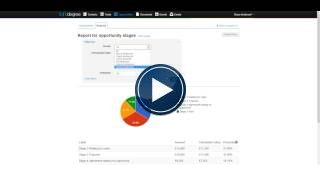
All custom fields will automatically have a report created and will display in a selection of graphs and as a table.


Comments