
See also How do I use the Email Marketing module to send a message to my contacts? for email reports.
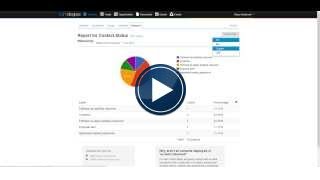
Reports are automatically generated for all custom fields. These appear in the reports tab (Contacts).
These display a count on the number of contacts in each field and also displays the percentage for each field.
The reports display as;
- A graph is displayed using a pie chart, bar graph, column or line graph (select the change chart icon to select).
- In table form which displays the label, the count and the percentage (a mobile will display fewer columns however you can select the additional columns to display - see displaying additional columns). A total count of all contacts is displayed at the base of the table.
The reports can be downloaded (Admin users only) as:
- CSV format - ideal for use in spreadsheets
- JSON format - ideal for other data processing
Why aren't all contacts displayed or 'no data' returned?
For 'text' custom fields, we ignore contacts with no data recorded for this custom field. If no data is shown at all it's likely that no contacts have entered this custom field, or there are no matches for the filters you're using.


Comments